> ## Documentation Index
> Fetch the complete documentation index at: https://docs.auxia.io/llms.txt
> Use this file to discover all available pages before exploring further.
# Batch with Export API
Auxia's pre-built integration leverages Amplitude's [Export API](https://www.docs.developers.amplitude.com/analytics/apis/export-api/) to ingest all of your company's event data for highly granular user targeting, feature creation and model training, as well as performance measurement.
## Steps to integrate
***Estimated time***: approximately 10 minutes
### Step 1
Log in to your Amplitude account and click 'Organization Settings' in the top right corner of the home screen.
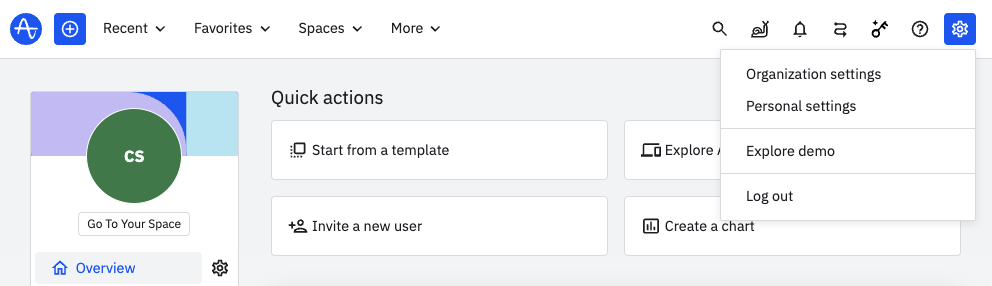 Page to view "Organization settings"
### Step 2
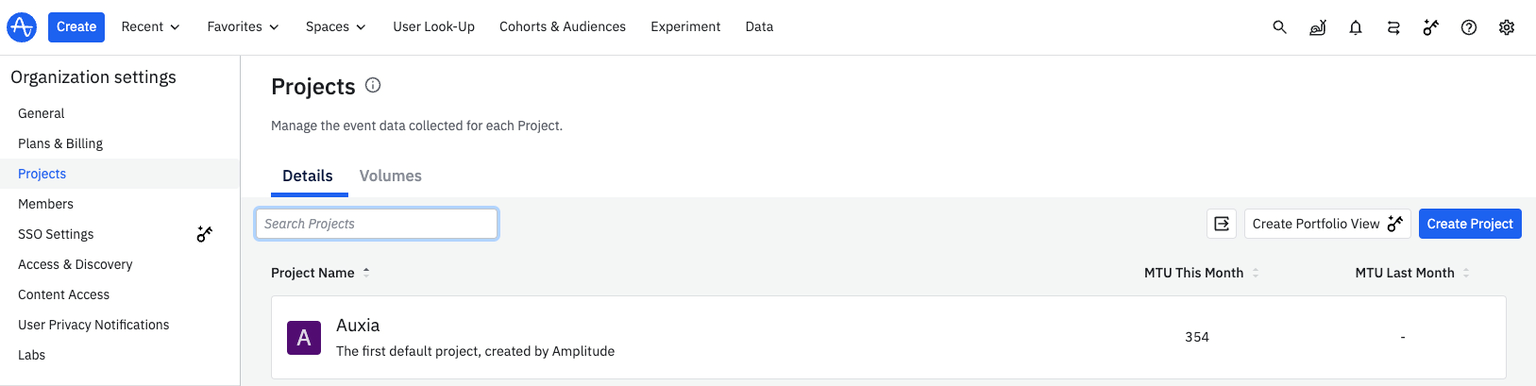
Click 'Projects' and navigate to your company's project page.
Page to view "Organization settings"
### Step 2
Click 'Projects' and navigate to your company's project page.
 ### Step 3
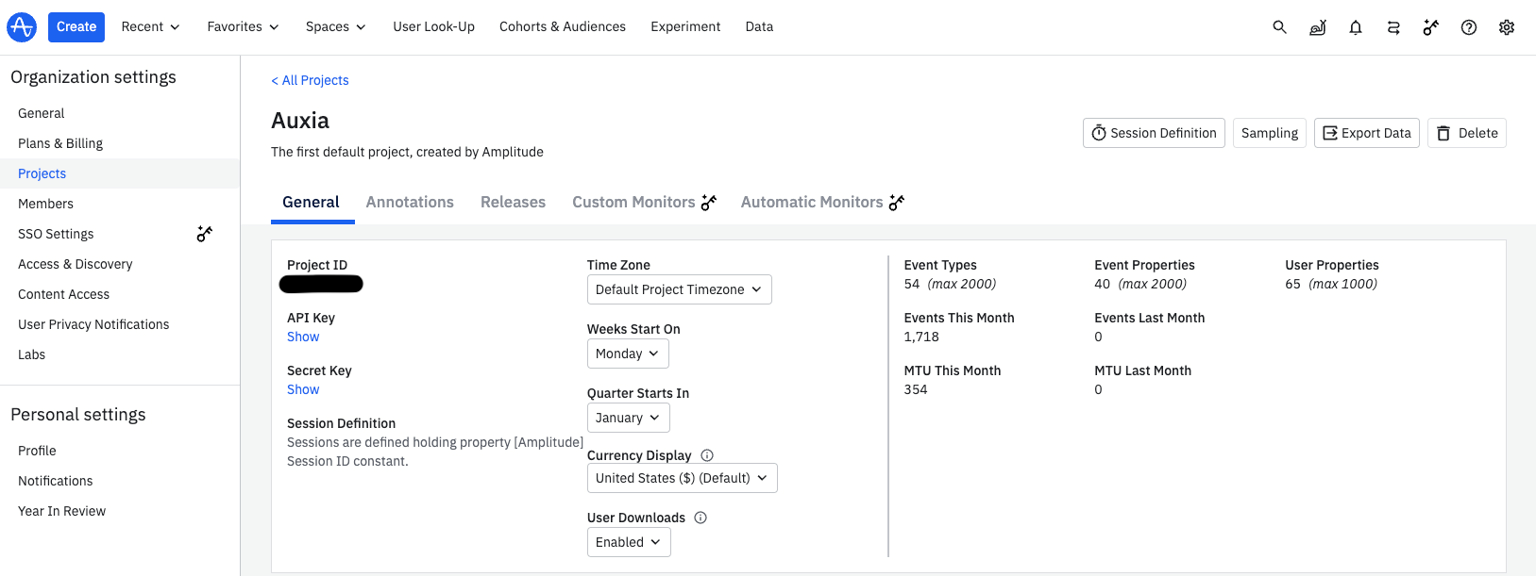
Within your project page, copy your company's API Key and Secret Key.
### Step 3
Within your project page, copy your company's API Key and Secret Key.
 ### Step 4
In a separate tab in your browser, open the [Auxia console](https://console.auxia.io) and select the "Manage" tab in the navigation bar. Under "Data Sources", click "Add connection". Then, click on the Amplitude card and enter the API Key and Secret Key into their respective form fields.
### Step 4
In a separate tab in your browser, open the [Auxia console](https://console.auxia.io) and select the "Manage" tab in the navigation bar. Under "Data Sources", click "Add connection". Then, click on the Amplitude card and enter the API Key and Secret Key into their respective form fields.
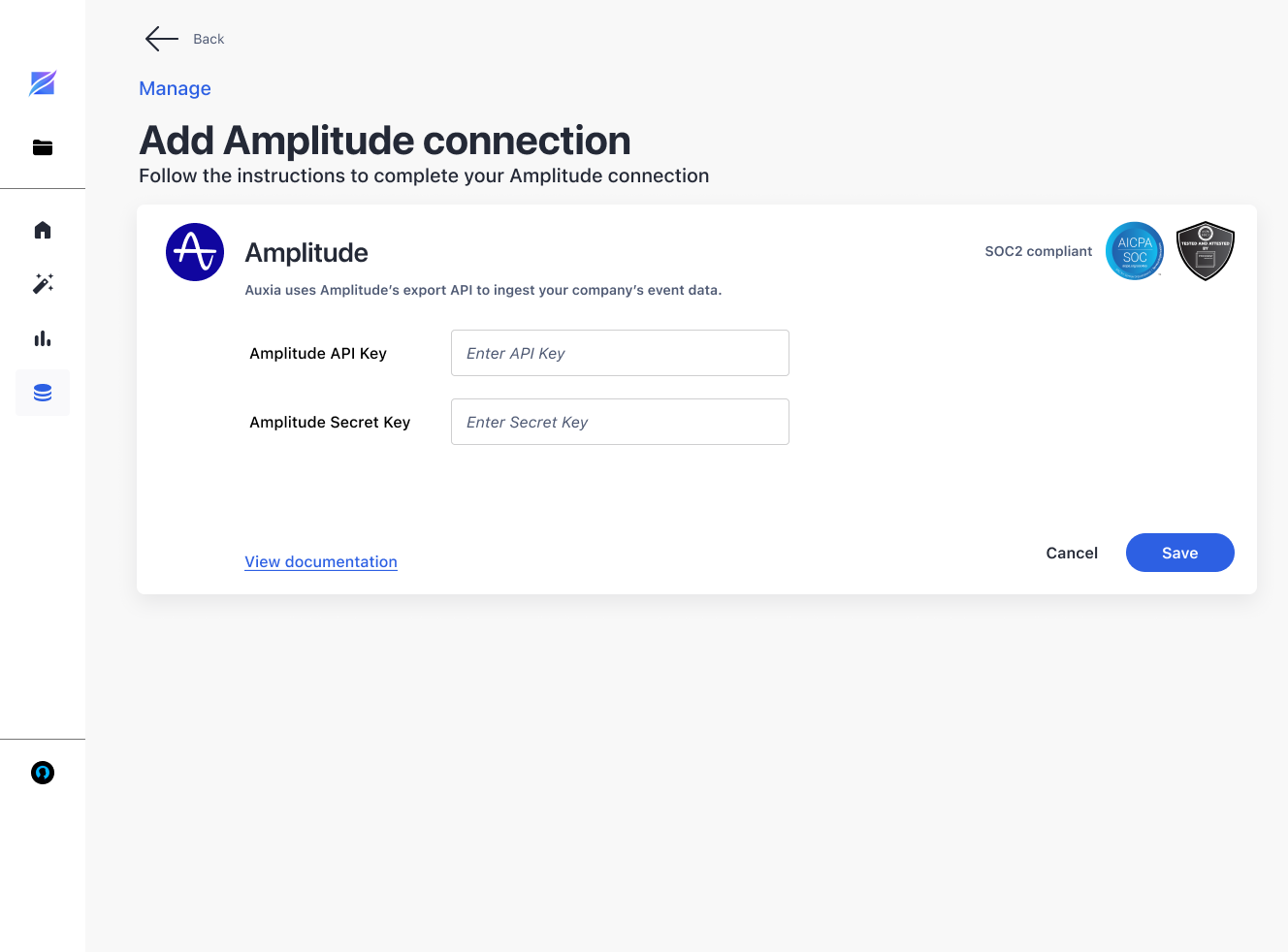 Once this step is completed, click save and your Amplitude events will start flowing through the "Events" section in the "Manage" page of the Auxia console.