> ## Documentation Index
> Fetch the complete documentation index at: https://docs.auxia.io/llms.txt
> Use this file to discover all available pages before exploring further.
# Streaming with Google Pub/Sub
Auxia's pre-built integration leverages [Google Pub/Sub](https://amplitude.com/docs/data/destination-catalog/google-pub-sub) to stream your Amplitude event data straight to Auxia's Pub/Sub account. Once the connection is set up, Auxia's automated ingestion jobs will ingest, process, and aggregate this data for model training.
## Steps to integrate
***Estimated time***: approximately 10 minutes
### Step 1
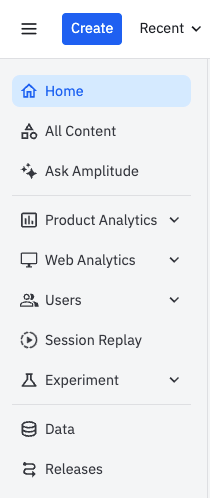
Login to the Amplitude console and navigate to the "Data" tab.
### Step 2
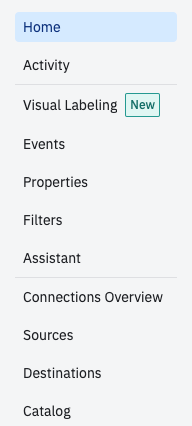
Navigate to the "Destinations" tab.
### Step 3
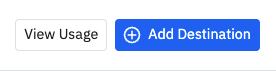
Click on "Add Destination"
 ### Step 4
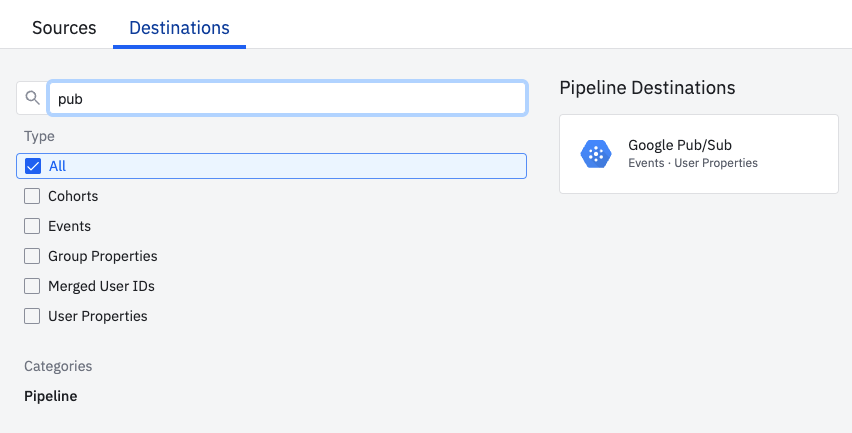
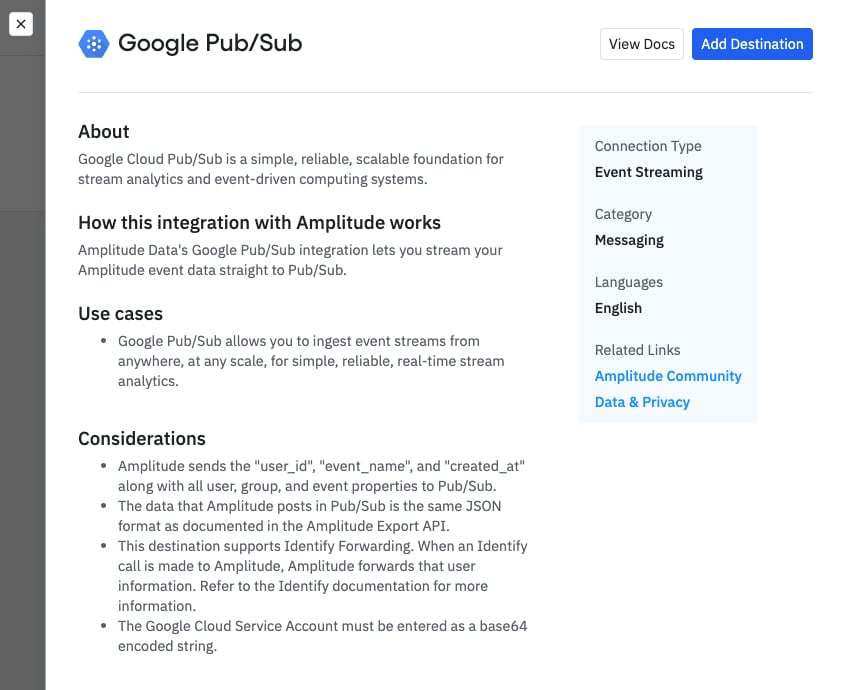
Search for "pub/sub" and select the "Google Pub/Sub Events - User Properties"
### Step 4
Search for "pub/sub" and select the "Google Pub/Sub Events - User Properties"
 ### Step 5
Click on "Add Destination".
### Step 5
Click on "Add Destination".
 ### Step 6
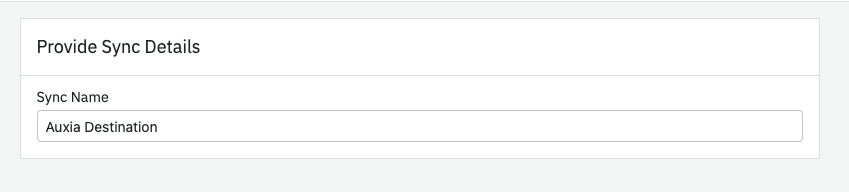
Add a sync name
### Step 6
Add a sync name
 ### Step 7
Take the following steps to complete the integration
* Enable the status.
* Enter the Auxia provided Pub/Sub Topic ID.
* Upload the Auxia provided key (shared securely)
* Select all the events to be shared. Depending on your Amplitude plan, the number of events that can be shared may be limited without incurring additional cost.
### Step 7
Take the following steps to complete the integration
* Enable the status.
* Enter the Auxia provided Pub/Sub Topic ID.
* Upload the Auxia provided key (shared securely)
* Select all the events to be shared. Depending on your Amplitude plan, the number of events that can be shared may be limited without incurring additional cost.
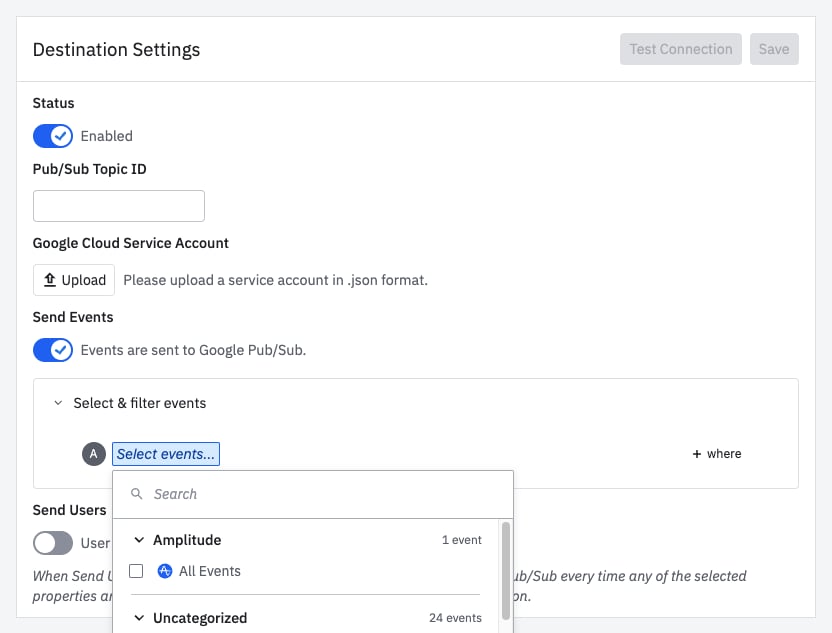 Once this step is completed, click save and your Amplitude events will start flowing through the "Events" section in the "Manage" page of the Auxia console.